Tronadian Web Hosting logo Tronadian Web Hosting Tronadian Web Hosting logo Tronadian Web Hosting
News:
Automatic Daily Backups New Feature - SiteJet Builder
CAD
  • CAD
  • USD
  • 0
    Account
    ExtendReduce
    Home
    Domains
    Register a New Domain Transfer a Domain My Domains
    Store
    Browse All ----- Shared Hosting WordPress Hosting SSL Certificates SEO Tools Website Security Site & Server Monitoring Professional Email ----- Register a New Domain Transfer Domains to Us
    Announcements Knowledgebase Network Status Contact Us Articles
    Client Login
    Knowledgebase
    1. Portal Home
    2. Knowledgebase
    3. Plesk
    4. Backup/Restore
    5. How to Configure an FTP Backup in Plesk
    Categories
    • SLA & Legal Policies
      2
    • Backup/Restore
      5
    • CloudLinux (cPanel)
      10
    • cPanel - Control Panel
      24
    • Databases
      11
    • DirectAdmin
      48
    • DNS - Nameservers
      6
    • Domain Management
      10
    • Email
      17
    • FAQ
      7
    • FTP
      9
    • Installing a Control Panel
      5
    • Mail Filters & SPAM
      8
    • Mobile
      11
    • Others
      3
    • PayPal
      7
    • Plesk
      47
    • Security
      10
    • SiteJet
      1
    • SiteWorx/InterWorx
      58
    • Softaculous
      69
    • SolusVM 2
      16
    • SSL
      4
    • Virtualizor
      19
    • WHM
      18
    • WordPress
      17
    Tag Cloud
    Support
    • My Support Tickets
    • Announcements
    • Knowledgebase
    • Downloads
    • Network Status
    • Open Ticket
    How to Configure an FTP Backup in Plesk
    Print

    In this tutorial, you will learn how to configure an FTP backup in Plesk. This allows you to store your website backups on a remote FTP server for added safety and offsite storage.


    1. Log in to your Plesk account.


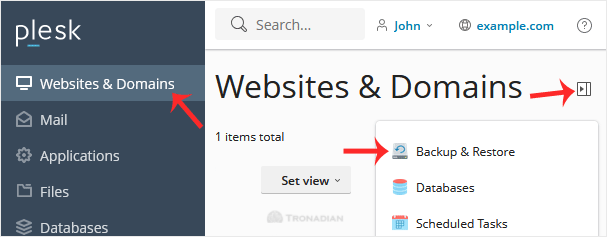
    2. Go to Websites & Domains > Click on the Pull icon >> Choose Backup & Restore.
    plesk-account-backup-manager-access.gif


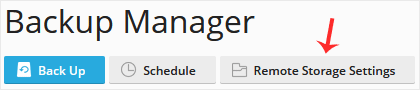
    3. Click on Remote Storage Settings.

    click-remote-storage-settings.gif


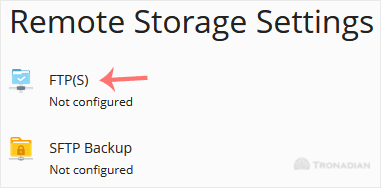
    4. Click on FTP(S).

    remote-storage-ftp-click-to-config.gif


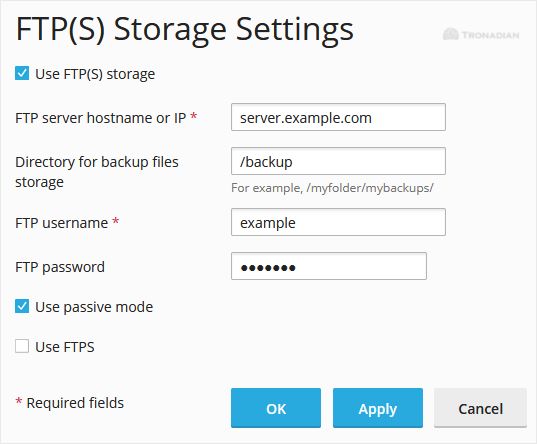
    5. Fill in the following details:

    - Make sure that Use FTP(S) storage is marked as enabled.

    - FTP server hostname or IP: Enter your FTP domain name or IP address.

    - Directory for backup files storage: Enter the path where your backup file will be stored, such as /backup.

    - FTP Username: Enter your FTP username.

    - FTP Password: Enter your FTP Password.

    - Use passive mode: We recommend that you either enable it or leave it as it is.

    - Use FTPS: You can checkmark it if your FTP server supports a TLS/Encryption.
    final-ftp-config-plesk-client.gif


    6. Click Apply.


    If it displays a success message, it means you have successfully configured an FTP(S) backup in your Plesk. You can now take a backup to the remote backup server.


    Was this answer helpful?

    0 Users Found This Useful (0 Votes)

    Related Articles

    Most Popular Articles

    How to Generate a Full Backup in Plesk

    Backing up is important, and you should do it regularly. Follow this tutorial to make a full...

    How to Exclude Specific Files/Folders from the Plesk Backup

    In this tutorial, you will learn how to exclude specific files or folders from a backup in Plesk....

    How to Encrypt Database Password in Plesk Backup

    In this tutorial, you will learn how to encrypt the database password in a Plesk backup.   1....

    Tronadian Web Hosting logo Tronadian Web Hosting logo

    contact@tronadian.ca
    Product
    • Web Hosting
    • WordPress Hosting
    Domains
    • Domain Checker
    • Transfer Domain
    Services
    • SSL Certificates
    • Professional Email
    • Website Security
    • SEO Tools
    Legal
    • Privacy Policy
    • Terms Of Service
    • Acceptable Usage Policy
    • Contact Us
    • Articles
    Copyright © 2026 Tronadian Web Hosting. All Rights Reserved.
    FraudLabs Pro Prevents Fraud for Digital Businesses Payments
    Loading...
    Loading...
    Choose language
    العربية
    Azerbaijani
    Català
    中文
    Hrvatski
    Čeština
    Dansk
    Nederlands
    English
    Estonian
    Persian
    Français
    Deutsch
    עברית
    Magyar
    Italiano
    Macedonian
    Norwegian
    Português
    Português
    Română
    Русский
    Español
    Svenska
    Türkçe
    Українська

    Choose Currency

    $ CAD
    $ USD

    Generate Password

    Please enter a number between 8 and 64 for the password length

    We use cookies to improve your browsing and support experience. By continuing, you agree to our Privacy Policy.