Tronadian Web Hosting logo Tronadian Web Hosting Tronadian Web Hosting logo Tronadian Web Hosting
News:
Automatic Daily Backups New Feature - SiteJet Builder
CAD
  • CAD
  • USD
  • 0
    Account
    ExtendReduce
    Home
    Domains
    Register a New Domain Transfer a Domain My Domains
    Store
    Browse All ----- Shared Hosting WordPress Hosting SSL Certificates SEO Tools Website Security Site & Server Monitoring Professional Email ----- Register a New Domain Transfer Domains to Us
    Announcements Knowledgebase Network Status Contact Us Articles
    Client Login
    Knowledgebase
    1. Portal Home
    2. Knowledgebase
    3. Installing a Control Panel
    4. How to Install cPanel
    Categories
    • SLA & Legal Policies
      2
    • Backup/Restore
      5
    • CloudLinux (cPanel)
      10
    • cPanel - Control Panel
      24
    • Databases
      11
    • DirectAdmin
      48
    • DNS - Nameservers
      6
    • Domain Management
      10
    • Email
      17
    • FAQ
      7
    • FTP
      9
    • Installing a Control Panel
      5
    • Mail Filters & SPAM
      8
    • Mobile
      11
    • Others
      3
    • PayPal
      7
    • Plesk
      47
    • Security
      10
    • SiteJet
      1
    • SiteWorx/InterWorx
      58
    • Softaculous
      69
    • SolusVM 2
      16
    • SSL
      4
    • Virtualizor
      19
    • WHM
      18
    • WordPress
      17
    Tag Cloud
    Support
    • My Support Tickets
    • Announcements
    • Knowledgebase
    • Downloads
    • Network Status
    • Open Ticket
    How to Install cPanel
    Print

    cPanel is the #1 Hosting Control Panel in the web hosting industry. You can easily install it.


    What are the requirements?
    - Fresh Ubuntu or AlmaLinux OS installed on your VPS/Server.

    How to install cPanel?
    1. Log in to your VPS/Server via the SSH Client.

    2. Copy the following command and paste it into the SSH console. Then press Enter.

    cd /home && curl -o latest -L https://securedownloads.cpanel.net/latest && sh latest


    3. The cPanel installation has begun. It can take from 5 to 10 minutes.
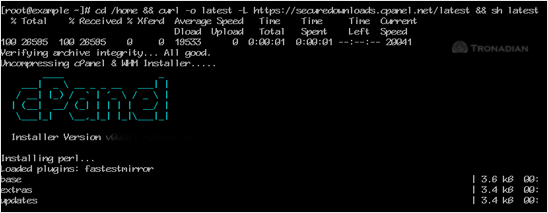
    cpanel-installation-started-on-console.gif

    4. Once the installation is complete, the console will display a message that the cPanel Installation has been completed.
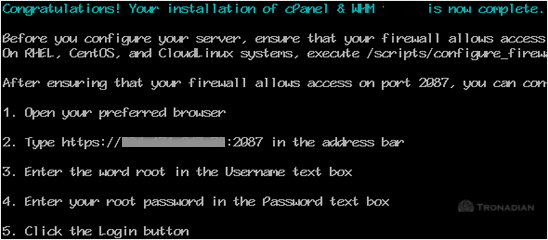
    cpanel-installation-completed.gif

    5. Open https://your-server-IP-here:2087 (WHM).
    6. Enter the root username and password.
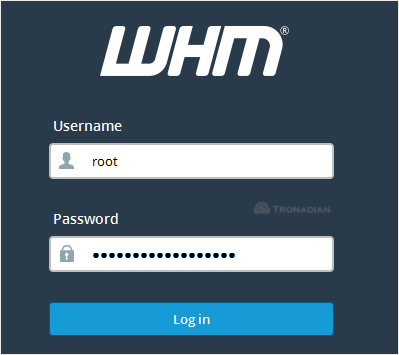
    cpanel-whm-login-first-time.gif
    7. Click on Login.


    cPanel/WHM Setup Wizard:


    Step 1: Read and accept the agreement. Click on Continue.
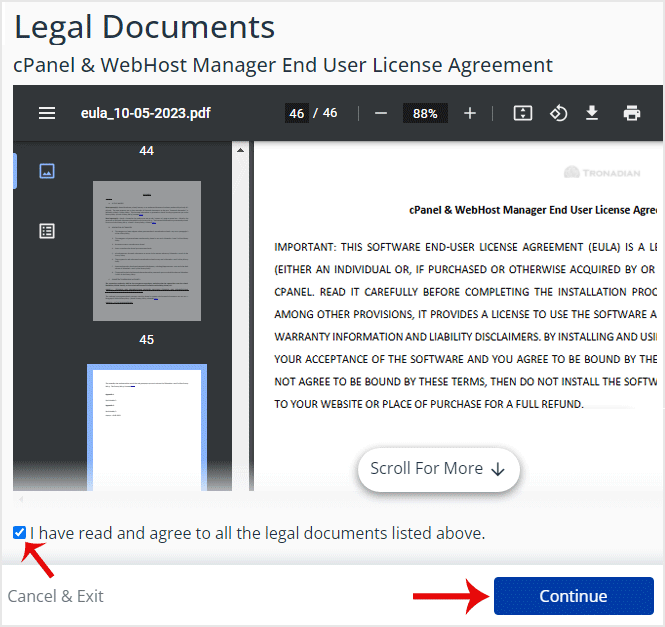
    cp-whm-agreement-accept.gif


    Step 2: If the cPanel license is not active, it may ask you to log in to the cPanel store to activate the trial license.


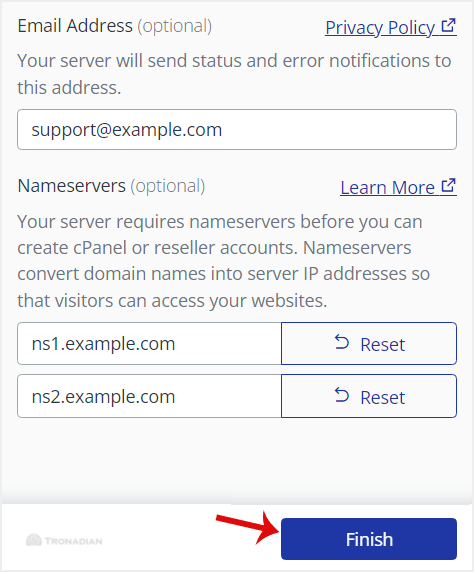
    Step 3: Setting up Email and Nameservers:
    - Email Address: Enter your email address. You will receive a cPanel-related alert in your email.
    - Nameservers: Enter your domain nameservers such as ns1.example.com and ns2.example.com. Please, replace example.com with your domain name.
    cp-whm-step2-networking.gif


    Finally, click Finish.


    Congratulations, the cPanel installation is complete. All you need to do now is to compile Easy Apache, change settings, install the firewall, etc.


    Was this answer helpful?

    0 Users Found This Useful (0 Votes)

    Related Articles

    Most Popular Articles

    How to Install Plesk on Linux

    Plesk is a popular website control panel. It makes managing your website easy. Although it is...

    How to Install DirectAdmin on CentOS

    DirectAdmin(DA) is a Commercial Hosting Control Panel used to sell shared and reseller hosting...

    How to Install Webmin on Linux

    Webmin is a free hosting control panel with easy installation. It takes only 5 to 10 minutes, and...

    How to Install SolusVM on Linux

    SolusVM is a popular control panel for managing VPS hosting. In SolusVM, the management node...

    Tronadian Web Hosting logo Tronadian Web Hosting logo

    contact@tronadian.ca
    Product
    • Web Hosting
    • WordPress Hosting
    Domains
    • Domain Checker
    • Transfer Domain
    Services
    • SSL Certificates
    • Professional Email
    • Website Security
    • SEO Tools
    Legal
    • Privacy Policy
    • Terms Of Service
    • Acceptable Usage Policy
    • Contact Us
    • Articles
    Copyright © 2026 Tronadian Web Hosting. All Rights Reserved.
    FraudLabs Pro Prevents Fraud for Digital Businesses Payments
    Loading...
    Loading...
    Choose language
    العربية
    Azerbaijani
    Català
    中文
    Hrvatski
    Čeština
    Dansk
    Nederlands
    English
    Estonian
    Persian
    Français
    Deutsch
    עברית
    Magyar
    Italiano
    Macedonian
    Norwegian
    Português
    Português
    Română
    Русский
    Español
    Svenska
    Türkçe
    Українська

    Choose Currency

    $ CAD
    $ USD

    Generate Password

    Please enter a number between 8 and 64 for the password length

    We use cookies to improve your browsing and support experience. By continuing, you agree to our Privacy Policy.